Map pages and run configurations
Map PDF pages to Revit sheets
In Page mapping, use each PDF page’s dropdown to select the corresponding Revit sheet. The Mapped badges, counter and progress bar show the mapping progress. Review the sheet numbers and titles before creating ACC issues.
| Automatic mapping tool | How it works |
|---|---|
| Auto-map by page number Opposing arrows icon | Maps PDF page 1 to the first Revit sheet, page 2 to the second, and so on. |
| Auto-map by title Magnifying glass icon | Reads each PDF page’s title block and matches it to the sheet with the same name. |
Check automatic matches and correct individual pages using their dropdowns. Save the setup before running the configuration.
Click the trash icon in Page mapping to unmap all pages in the current configuration immediately with one click.
Start or stop watching
1. Check the Bluebeam source, ACC target and page mapping.
2. Choose whether to enable Auto-create issues. Leave it off if you want to review Bluebeam markups before creating ACC issues.
3. Click Start watching, or use Actions > Start in the configuration list.
4. Check the Running state and activity messages such as watching for changes or fetching Bluebeam markups. Use Stop watching or Actions > Stop to stop; start again when ready.
Run and open multiple configurations
You can save and run multiple configurations simultaneously. When at least one is running, the floating RUNNING PIPELINES indicator appears across the app. Open it and choose a configuration to go directly to that configuration, including while working on Connections, File Transfers or Management.
Click the × beside a configuration in RUNNING PIPELINES to stop watching for that configuration.
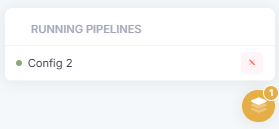
Open a configuration or stop watching from the floating indicator.
Keep this browser tab open. Closing or reloading the tab stops all running configurations. Monitoring runs in the browser tab and does not continue on a server in the background. After reopening or reloading, start the required configurations again.
Markup Issue Sync workflow