Getting started and Connections
Open https://diblueconnector.diroots.com/ and sign in to Di.BlueConnector. You also need accounts with access to the Autodesk Forma projects and Bluebeam Studio Projects or Sessions you plan to use.
Add the DiRoots APS custom integration
An Autodesk Forma hub administrator must complete this setup for each hub you need. Contact DiRoots to obtain the APS Client ID. APS stands for Autodesk Platform Services.
1. Open the target hub in Autodesk Forma and go to Hub Admin (Account Admin in the older interface).
2. Open Custom Integrations, then choose Add custom integration.
3. Enter the DiRoots APS Client ID and the integration name DiRoots APS.
4. Click Next and complete the account and access prompts shown by Autodesk. If a Secure Service Account is associated with the integration, it must have access to the required projects.
5. Confirm that the integration is Active and that your signed-in account can access the required project data.
Autodesk custom integration instructions
Connect your accounts
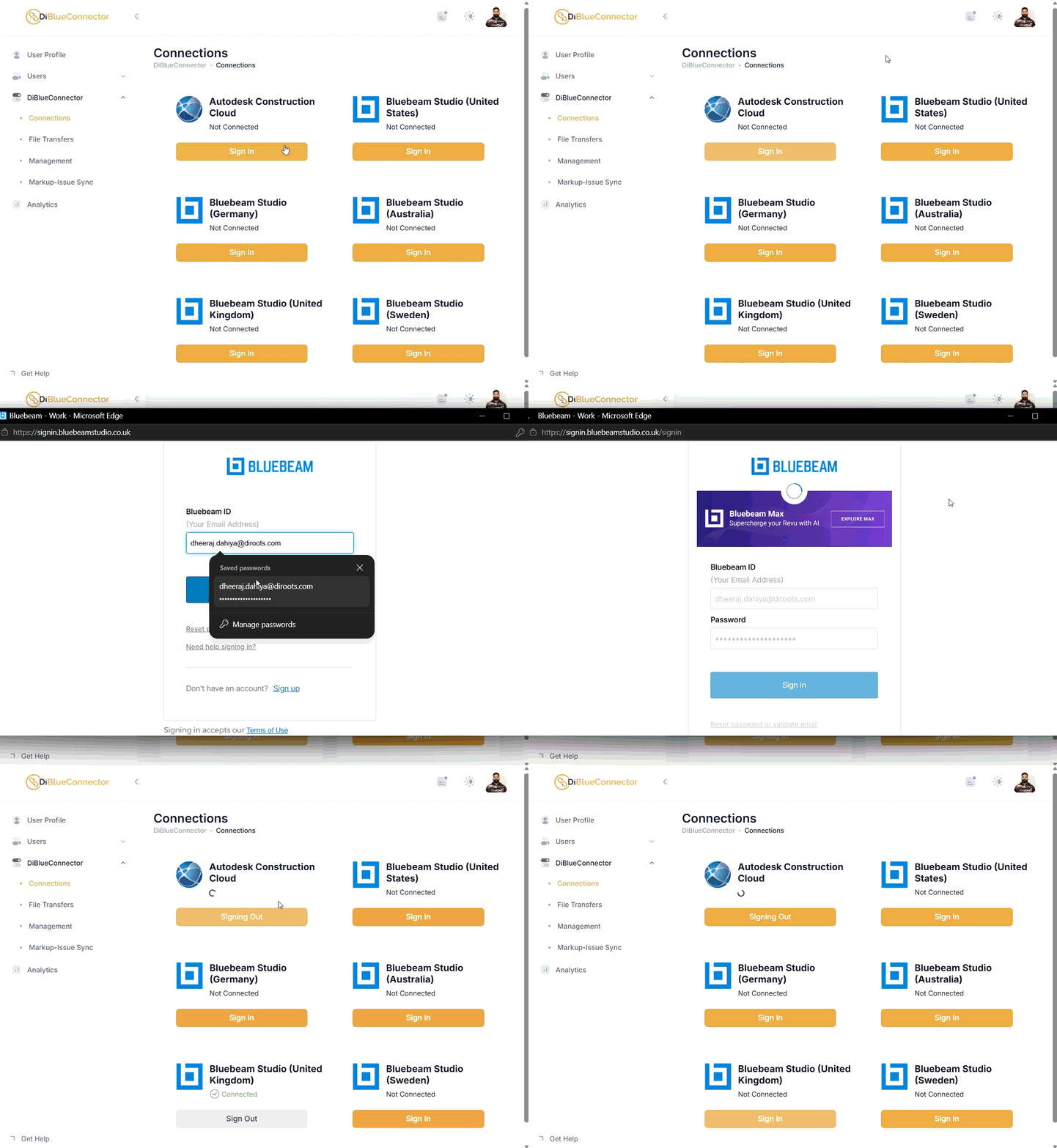
Open DiBlueConnector > Connections. There are six cards: Autodesk Construction Cloud and Bluebeam Studio in the United States, Germany, Australia, United Kingdom and Sweden.

Each card shows its connection status and sign-in control.
1. Click Sign In on the Autodesk Construction Cloud card and complete authorisation.
2. Click Sign In on the Bluebeam card for the region containing your data and complete authorisation.
3. Check that every environment you need shows Connected. Unconnected environments show Not Connected and are unavailable in data selectors.
Each Bluebeam region connects separately. The APS app integration described above is required only for Autodesk Forma; no separate app integration is needed to connect to Bluebeam. To disconnect or switch accounts, select Sign Out, then Sign in with the required account.
For issue review in Revit: Prepare Autodesk’s Issues tools and access to the target cloud model. See Review and resolve ACC issues in Revit for the setup and workflow.