Transfer PDFs
A transfer copies PDFs to the selected destination. The source files stay in their original location.
1. Open the required destination in the opposite panel.
2. Select the source PDFs using the row checkboxes, or use the header checkbox to select all available rows. For Docs, choose the version of each PDF to transfer.
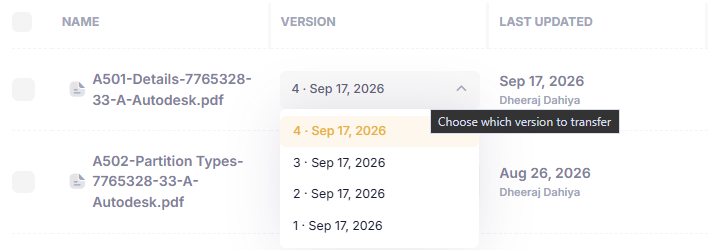
In Docs, choose the PDF version before transferring.
3. Click Transfer Files (N) on the source side. N is the selected file count; Transfer Files (0) is inactive.
4. For several PDFs, the Choose export method dialog opens. Select Export as multiple PDFs to transfer separate files, or Export as single PDF to combine them into one PDF.
5. For a single combined PDF, review the listed files in Confirm destination, enter a New file name, and click Confirm.
6. Complete any destination-specific prompts, then check the Transfer Summary for total, successful and failed transfers. Click Close and check the destination list.
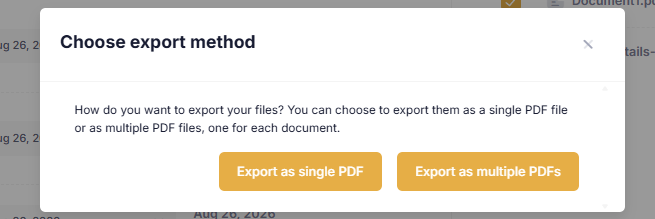
Choose one combined PDF or keep the selected PDFs separate.

Give a combined PDF its new file name before confirming.
Follow the destination workflow on the next pages: Docs, Sheets, Submittals, or Bluebeam Studio.
File Transfers workflow