Create an Autodesk Forma project
1. Select Autodesk Construction Cloud and the target Hub on the Management page.
2. Choose Create > New ACC Project.
3. Complete the project details below and click Submit.
| Field | What to enter |
|---|---|
| Project Template | Optionally choose an existing template on the selected hub to clone its products and settings. Choose No template (create from scratch) for a new setup. |
| Project Name | Required. Enter the new project’s name. |
| Project Number | Enter a project reference number if needed. |
| Start Date and End Date | Enter dates or use the calendar controls. The displayed date format is dd-mm-yyyy. |
| Project Type | Required. Select the appropriate project type. |
| Products | Choose the products for which you will have administrator access. Docs (Document Management) is selected by default so the project appears in Di.BlueConnector’s project list. Use the × on a selected product to remove it. |
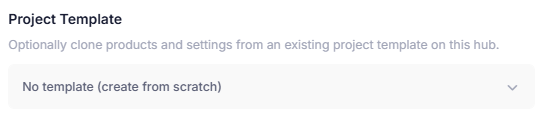
A project can start from a hub template or from scratch.
Check required details
Required fields are marked with an asterisk. If a field is missing, correct the validation message and submit again. For example, an empty name displays Project Name is required.

Validation identifies missing required information.
Use Discard or the close control to leave the form without creating the project.
Management workflow