Manage Bluebeam Projects and Sessions
Select a connected Bluebeam Studio region on the Management page. The list shows the Projects and Sessions available to the signed-in account, with Type, Name, Owner, Status, Created Date and Actions.
Use Search to find an item. Under Filter, choose Type: All, Projects or Sessions. The Create menu offers New Studio Project and New Studio Session.
Edit a Project or Session
Choose Actions > Edit, update the available fields, then click Submit. Use Discard to leave without saving.
| Item | Editable settings |
|---|---|
| Studio Project | Project Name and Restricted. |
| Studio Session | Session Name, Session End Date, Restricted, Status and Attendees Permissions. |
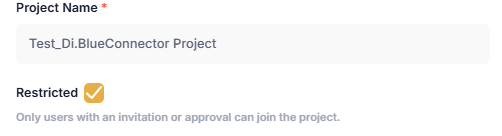
A Studio Project’s edit form includes its name and Restricted setting.
Restricted limits joining to users with an invitation or approval. Session attendee permissions control document and review actions; see the next page for the available settings.
Manage members and send invitations
1. Choose Actions > Manage Members.
2. Review Current Members and their User Access. A Session also shows each member’s Status, such as whether the member is currently in or out of the Session.
3. Under Invite Members, enter email addresses separated by commas and add a Message.
4. Click Send invites.
Invited users appear in the members list after accepting the invitation.
Delete a Project or Session
Choose Actions > Delete for the item to remove. Deletion requires the appropriate Bluebeam permissions. If an action is not permitted, the app displays an error notification.
Management workflow