Create a Bluebeam Project or Session
Create a Studio Project
1. Select the connected Bluebeam region, then choose Create > New Studio Project.
2. Enter the Project Name and set Restricted and Notifications as required.
3. Enter the invitees’ email addresses and a Message, then click Submit to create the Project and send the invitations.
Create a Studio Session
1. Choose Create > New Studio Session in the selected Bluebeam region.
2. Enter the Session Name and Session End Date, then set Restricted and Notifications.
3. Under Files, drag and drop the PDFs or click Add Files to browse for them.
4. Set Attendees Permissions, enter invitee Emails separated by commas, and add a Message.
5. Click Submit to create the Session and send the invitations.
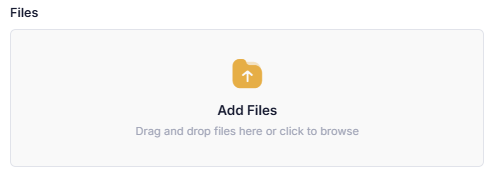
Add the PDFs that participants will review in the new Studio Session.
Session attendee permissions
| Permission label | What it controls |
|---|---|
| Save As | Saving Session documents. |
| Print Copy | Printing Session documents. |
| Markup | Adding Bluebeam markups to Session documents. |
| Add Documents | Adding documents to the Session. |
| Markup Alert | Sending Bluebeam markup alerts to attendees. |
| Full Control | Full Session control; this overrides the other permissions. |
Choose the required setting from each permission dropdown. Scroll within the form to see all fields. Restricted requires an invitation or approval to join; Notifications enables update notifications. Required fields are marked with an asterisk. Use Discard to cancel creation.