Create a configuration and set up the connection
Use DiBlueConnector > Markup-Issue Sync to convert Bluebeam markups in a Studio Session PDF into ACC issues on mapped Revit sheets. Reviewers work in Bluebeam; modelers and coordinators review and resolve the linked ACC issues in Autodesk Forma on the web or in Revit. PDFs with multiple pages are supported. Studio Projects are not supported for this workflow.
Manage saved configurations
The configuration list shows each saved Name, Setup state and Actions menu, plus the total configuration count. States include Needs setup, Configured and Running.
| Action | Result |
|---|---|
| Add config | Creates a new configuration. |
| Open | Opens the configuration for setup or review. |
| Start / Stop | Starts or stops the configuration’s monitoring pipeline. |
| Remove | Deletes the saved configuration. |
Set up the Bluebeam source and ACC target
1. Click Add config, enter a meaningful configuration name, and click Save. Use Open to edit an existing configuration.
2. In Session setup > BLUEBEAM SESSION, choose the connected Region, Session and Document. Use the refresh control to reload available Session data.
3. Set Poll every to the number of seconds between checks. After each interval, the app fetches changes from the configured Bluebeam Studio Session.
4. Under ACC ISSUE TARGET, select the Hub, Project and Issue type. Choose the cloud Revit Document that the modeler will open to resolve the ACC issues. Use Change to select another document.
5. Click Save setup, then map the PDF pages to the corresponding Revit sheets.
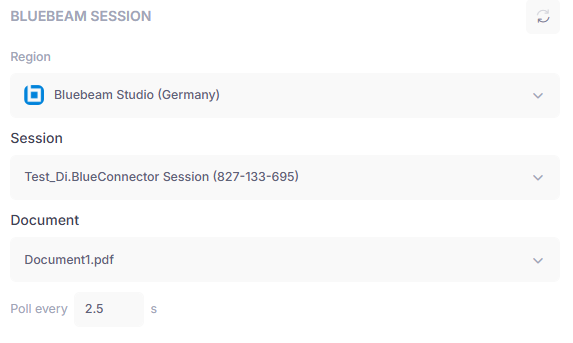
Choose the Bluebeam Session PDF and polling interval in the source settings.
Markup Issue Sync workflow