Transfer to Docs and Sheets
Transfer to Docs in Autodesk Forma
Open Docs and the destination folder in the receiving panel. Select the source PDFs and transfer them. A PDF with the same name as an existing document creates a new version of that document, as it does when uploaded directly to Docs in Autodesk Forma.
Transfer to Sheets in Autodesk Forma
Open Sheets in the receiving panel. After you select the source PDFs and click Transfer Files, the Import Sheets workflow opens.
1. Under Select version set, choose Ungrouped or an existing Collection.
2. Choose the version set using the rules below. For a new version set, enter its Version set name and Issuance date, then click Next.
| Collection choice | Available version-set options |
|---|---|
| Existing collection | Select an existing version set associated with that collection. |
| Ungrouped | Create a new version set or select an existing version set. |
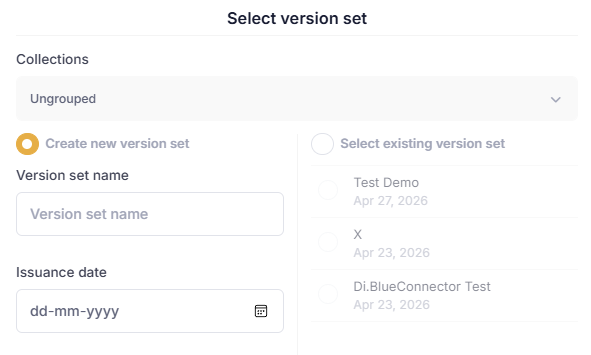
Ungrouped sheets can use a new or existing version set.
3. Review sheet numbers. The app lists the sheets from the PDF and automatically fills in detected sheet numbers. Check and correct them, then click Next.
4. Review titles and tags. Enter the sheet titles and assign one or more existing tags as needed. Use Previous to revisit a step, or click Publish to finish.
5. Check the result. Review the Transfer Summary and confirm the published sheets in the destination list.
File Transfers workflow